A few months ago, I switched to the Pocket Casts team, and it’s been a busy start. I’ve done a lot of work modernizing the app, including adopting Liquid Glass, helped with the new Apple TV app, and shipped hundreds of fixes along the way. So when Apple announced iPhone Duo, I was excited to add support for it, even though we had very limited time.
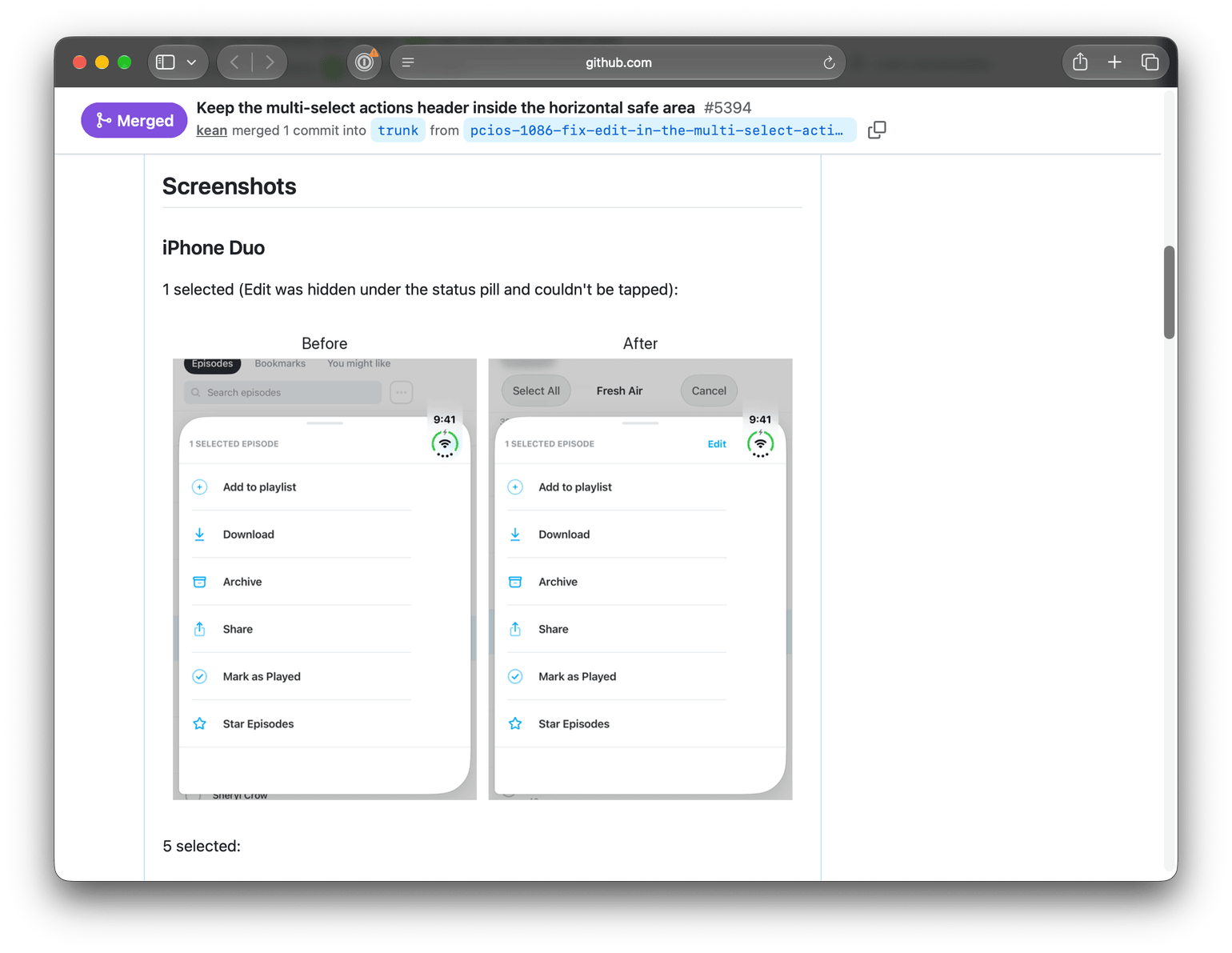
Take the “Edit” button in one of the Pocket Casts sheets. On iPhone Duo, it landed right under the status pill, where you couldn’t tap it. It’s a tiny bug, and there were dozens like it. Pocket Casts has hundreds of screens, sheets, alerts, and deep links, and iPhone Duo changes the size and shape of every one of them. How do you find all of these issues, fix them, and check everything again after every round of fixes, in time for the launch? Here’s what we shipped, and then how I got there with the help of agents.
What’s New #
We updated the app for iPhone Duo, and, of course, the first step was making the tab bar, toolbars, and native navigation work correctly, folded and unfolded.

The main changes are in the mini player and Now Playing. Once you unfold, the mini player has room for more controls, including skip buttons and a scrubber, so you can control playback without opening the full player.
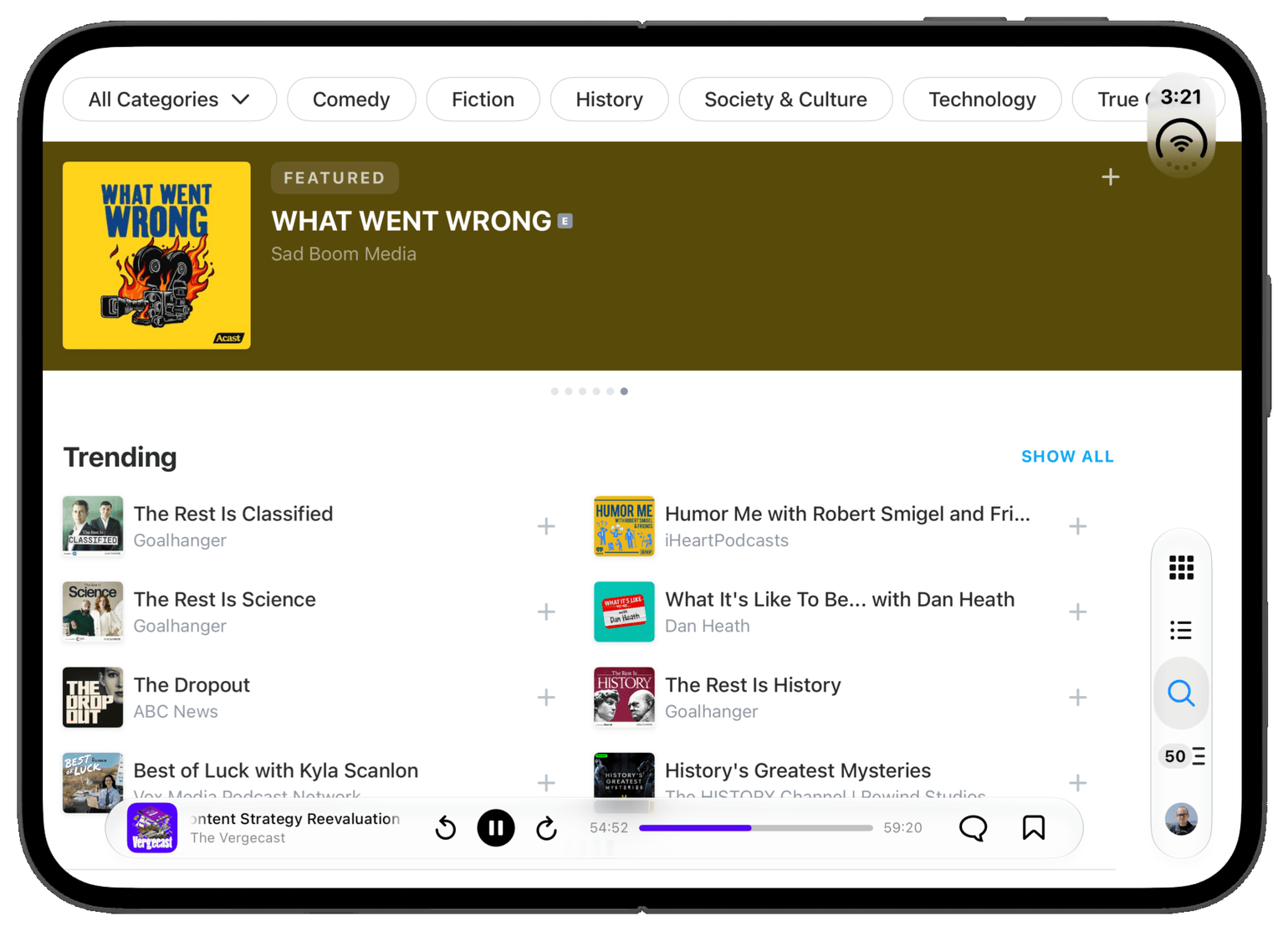
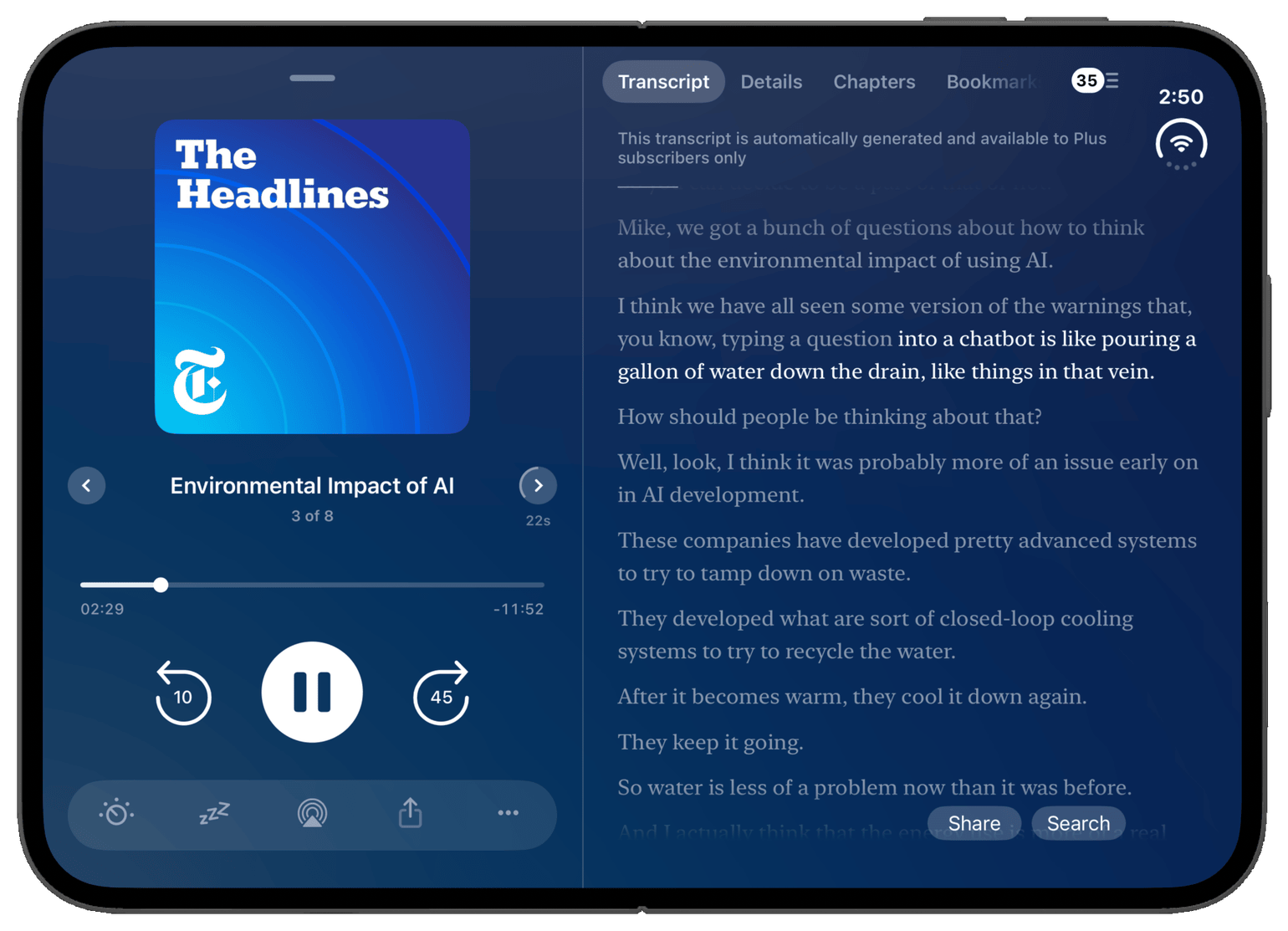
Now Playing makes use of the extra space too. Instead of stacking everything in a single column, it shows its tabs, like Transcript and Chapters, side by side with the controls, so you can follow along with the transcript while you listen.
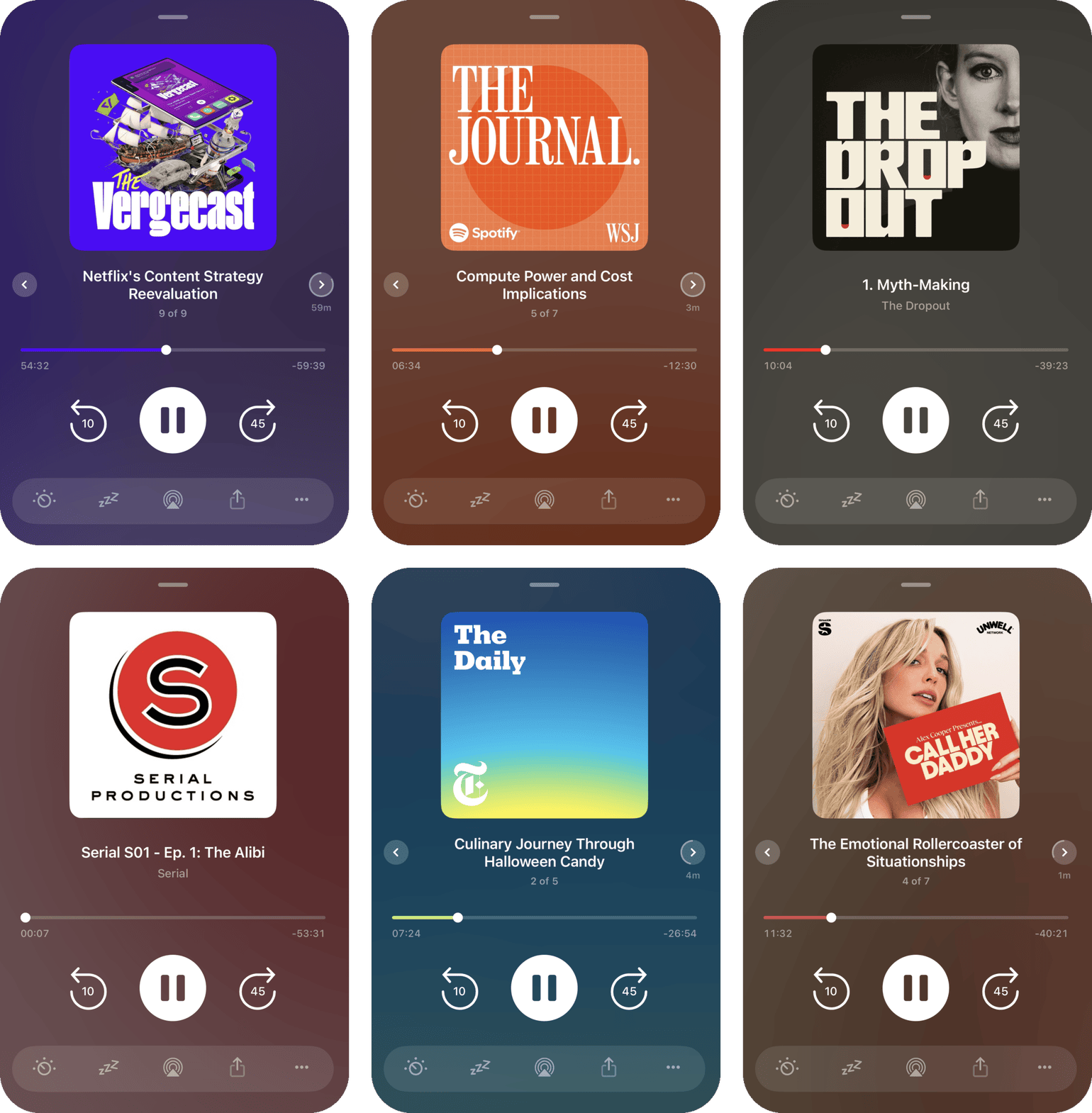
We also made Now Playing a bit nicer visually. The background now takes its colors from the podcast artwork, so the player adapts to each of your favorite shows, from the purple of The Vergecast to the warm orange of The Journal.
Pocket Casts is free, and you can download it on the App Store.
Harder Than It Looks #
The new features are the fun part. The rest of the app looks like it should just work, but getting there took an enormous amount of testing and fixing, especially for the horizontal safe area.
Duo also exposed a bigger gap. A large screen on demand is the whole point of the device, and parts of the app needed more love on a big screen, like split views and popovers where they make sense. That will take more than one release, so the plan for this one was to fix everything that was broken and ship the new mini player and Now Playing.
I started by preparing: watching Apple’s videos, testing the app myself, researching, planning, and updating my QA setup. Then came development, and that’s where agents came in.
Last year, in Claude Code Experience, I wrote that I was still working with Claude interactively, one change at a time, but could see myself “parallelizing the work using git worktrees.” Duo is where that happened: agents driving several simulators at once, every fix in its own worktree, and other agents checking their work. Here’s how it went, with numbers.
Apple’s Skill Goes First #
Apple’s Prepare for iPhone Duo guide starts with the Xcode app resizability skill. You ask the coding assistant to “get my app ready for iPhone Duo”, and it looks for what breaks when a window changes size: UIScreen.main, orientation checks, and idiom checks. For other agents, xcrun agent skills export gives you the skill as files. I had it split the work into small PRs, one per kind of change, so each could be reviewed and reverted on its own:
- Screen to view. Hairlines use the view’s display scale, layouts size from their own width, small-screen layouts compare the available height, and Display Zoom comes from the window’s screen.
- Idiom to size class. Form sheets are picked by size class instead of the iPad idiom (25 files), and the remaining idiom checks read the trait collection.
- Keyboard and safe area. Six screens use
keyboardLayoutGuideinstead of hand-rolled keyboard notifications (−202 lines); footer, sheet, and video controls stay inside the safe area; and insets are read at layout time.
Pocket Casts is open source, so you can follow along with all the changes on GitHub, or propose your own.
The skill can’t see layout, though. It has no way to know that a header ends up under the status pill, or that a row runs under the side bar. That’s what the screenshots are for.
Smoke Test, Then Full Blast #
How do you let agents “see” your app? Fortunately, Xcode 27 arrived at exactly the right time. Its MCP server gained new DeviceInteraction tools that let agents take screenshots, read the view hierarchy, and tap through the app on a simulator. I started with baby steps, checking a few flows at a time, and quickly scaled it to more than a thousand screenshots and flows, tested and validated completely automatically.
The first run was deliberately quick. An agent walked the high-traffic flows on the Duo simulator (Podcasts, podcast page, Playlists, Discover, player), screenshotting every step, and filed the first batch of issues. Agents fixed those too, one worktree and PR per issue across parallel simulators, each PR with before/after screenshots so I could verify fixes without building the branch.
Then came the full sweep of the app across iPhone, Duo, iPad, Slide Over, and other window sizes: about 1,700 screenshots in total.
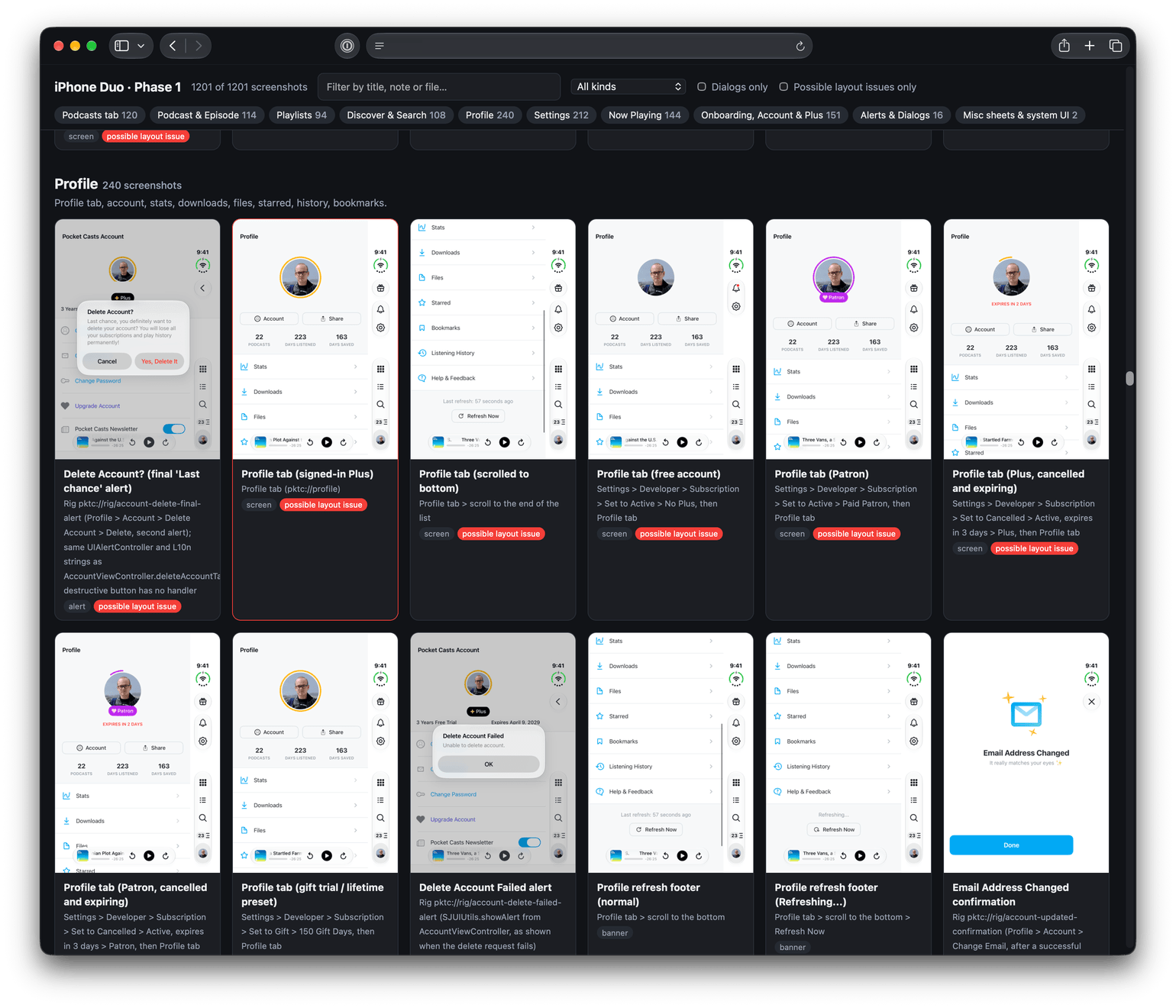
One gap: agents can’t drive the unfolded Duo yet, which looks like an Xcode issue. The sweep covers the folded pose, and I used iPad mini in landscape to check the regular × regular layouts. Fortunately, the folded version has the same layout with toolbars on the right – horizontal safe area turned out to be the biggest challenge.
Reporting Issues #
The sweep logged nearly a thousand observations, most of which needed no issue: already tracked, accepted, or since fixed on trunk. To filter them, a second set of agents independently reviewed all the screenshots without seeing the sweep’s notes, candidates were de-duplicated against existing issues, and I checked every screenshot that became an issue myself.
What was left went straight into triage. Each issue has screenshots, repro steps, the affected screens, and a likely cause in code where the agent could find one. Here’s the only High-priority one, the “Edit” button from the beginning of this post:
Fix “Edit” in the multi-select actions sheet hidden under the status pill on iPhone Duo. The sheet is presented full width, so when it’s tall (6 or more actions), the header row lands exactly where the status pill is drawn. Edit is covered, and a tap at its position does nothing, so the user can’t open Rearrange Actions. Likely cause:
MultiSelectActionController.xibpins the header buttons 16 pt from the trailing edge instead of the safe area. The same fix was made forShelfActionsViewController.xibin an earlier issue; this is the sibling that was missed.
The same fix loop ran on the new batch. The fix for this one is #5394, an XIB constraint change. The PR has the root cause, the test steps, and the screenshots, and notes that the iPhone before/after screenshots are pixel-identical, which is the check I’d otherwise skip.
Overall, counting the ones I found myself, the agents and I logged 56 issues during this project, and the vast majority of them were on point.
Regression Testing #
Next came regression testing, using the agent skills I’d been building to automate it. The library had 77 scenarios, from account and deep links to sync and Up Next. Each one is a list of steps with basic expectations written in plain language, but the agents use their own judgment along the way to flag anything that looks off, so it covers far more ground than a traditional XCUITest suite would.
Agents drive the app on simulators using a set of test accounts, from Free to one with 150+ podcasts, so scenarios that change data don’t step on each other. A second agent with no simulator access then reads the code behind each finding, marks it verified or rejected, and writes down the likely cause before anything gets filed.
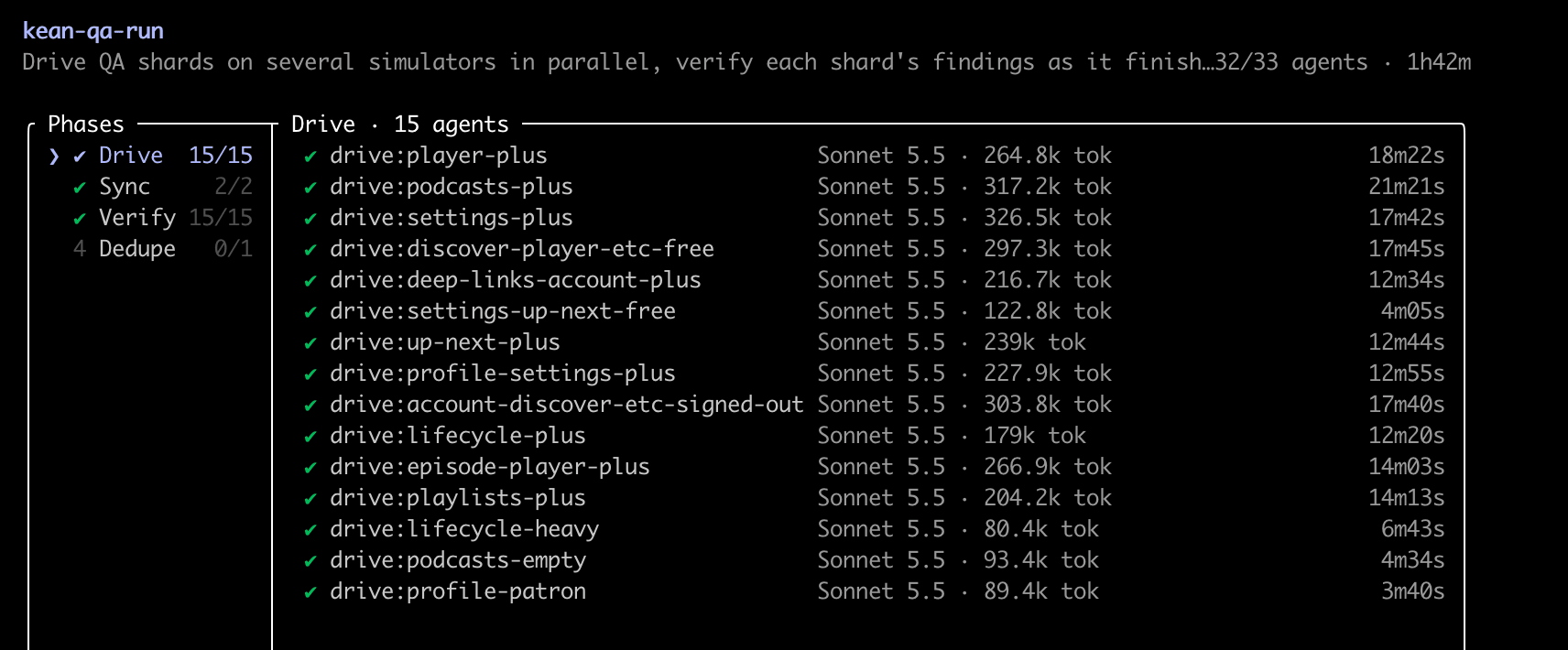
Across all runs, that’s now more than a hundred issues. Most are relatively minor, but papercuts hurt, and I’ve already addressed a bunch of them.
Since Duo, I’ve kept iterating on the regression suite. It’s now faster, has many more scenarios, and comes with a dedicated reporter optimized for our needs.
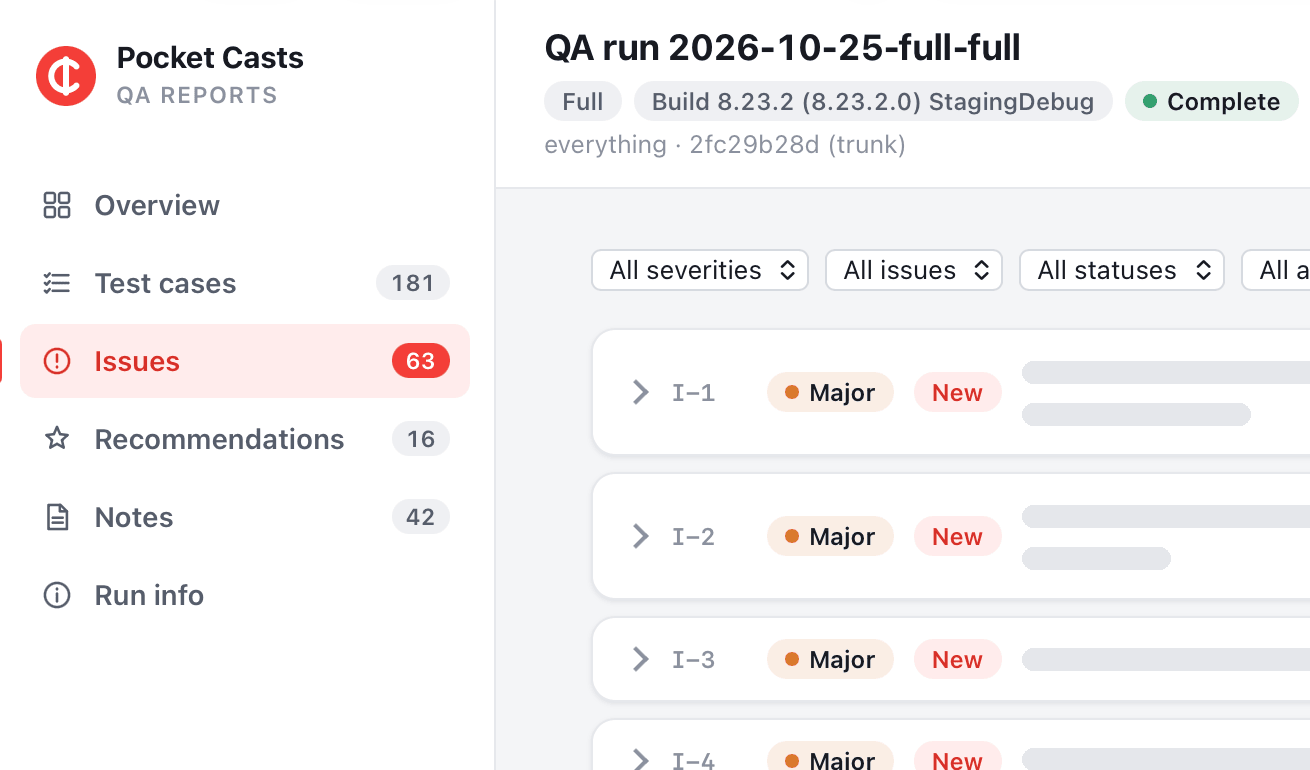
I’m also incorporating video walkthroughs everywhere, including bug reports and regression runs. Each one shows the app side by side with the logs and an explanation, stitched together into a single video for convenience.
If You’re Adopting Duo #
Start with Apple’s skill, but don’t expect it to do the whole job. Most of what broke for us was layout, and most of that came down to the horizontal safe area. Anything pinned to the screen edges instead of the safe area ends up under the status pill or the toolbar on the side, and the only reliable way I found to catch it was to look at every screen in every size. That’s where the 1,700 screenshots came from.
And if your app isn’t great on large screens yet, Duo is where it catches up with you. Fixing what’s broken is the easy part. Making the app feel at home on a big screen is the real work, and I feel like for many apps, Duo will be a great excuse to finally put more resources into it. iPad gets all of it for free.
What’s Next #
With the broken screens out of the way, there’s a lot more coming to Pocket Casts soon, so stay tuned. If you want to be on the latest beta, you can ask to join it.
Pocket Casts is free, and you can download it on the App Store.